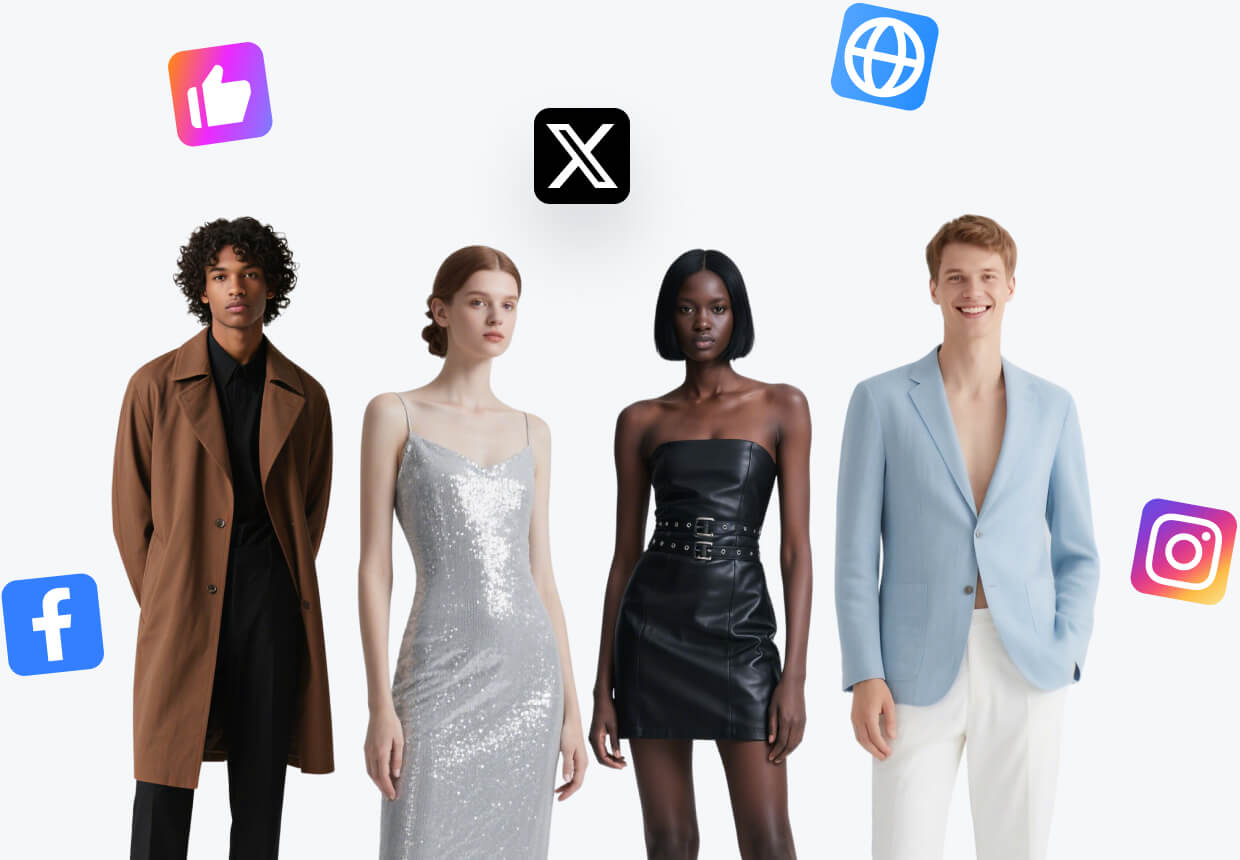
AI Virtual Try-on
Preview garments on different models without arranging another shoot.
Open WorkshopJPG, PNG, and WebP supported
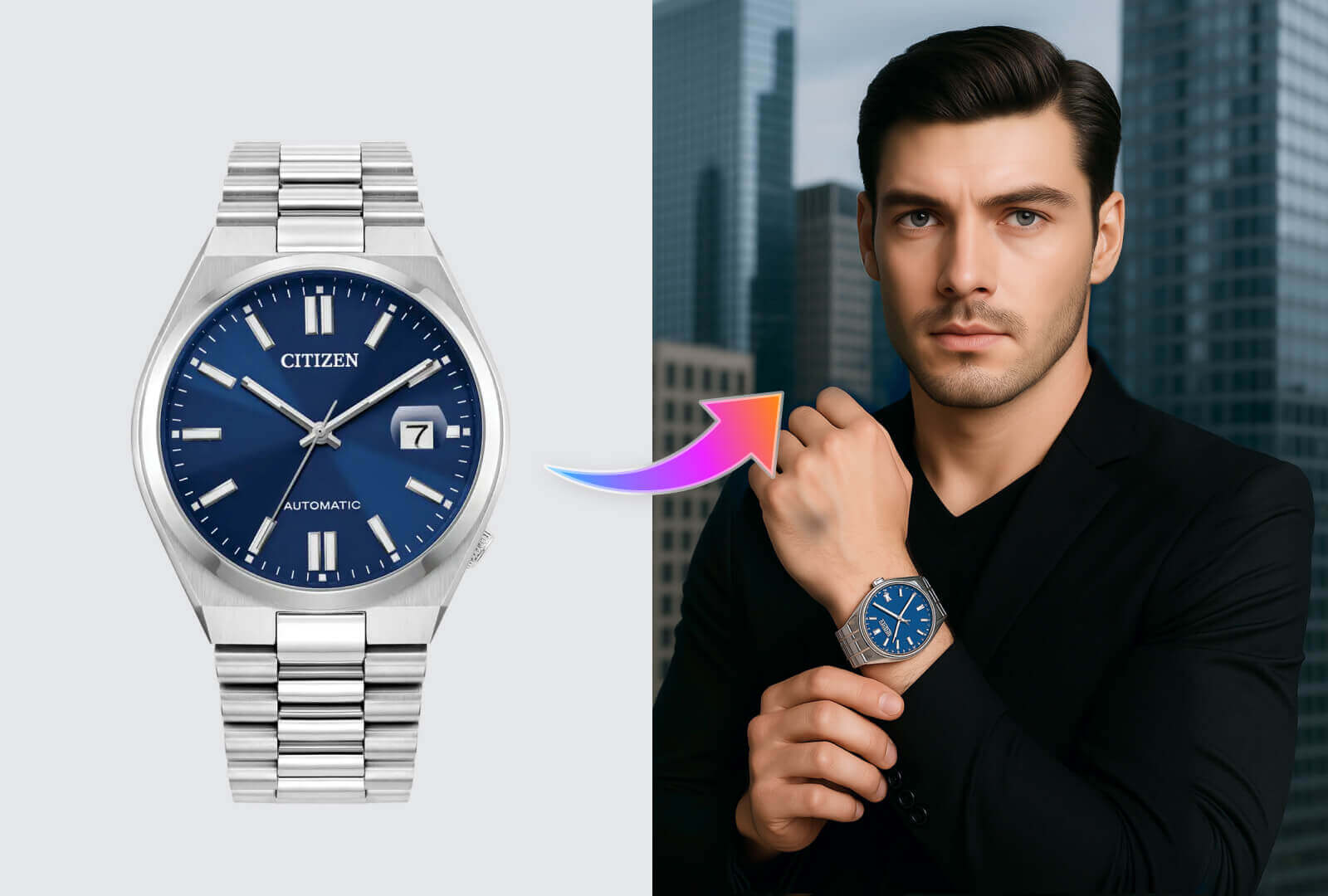
Preview garments on different models without arranging another shoot.
Before and after
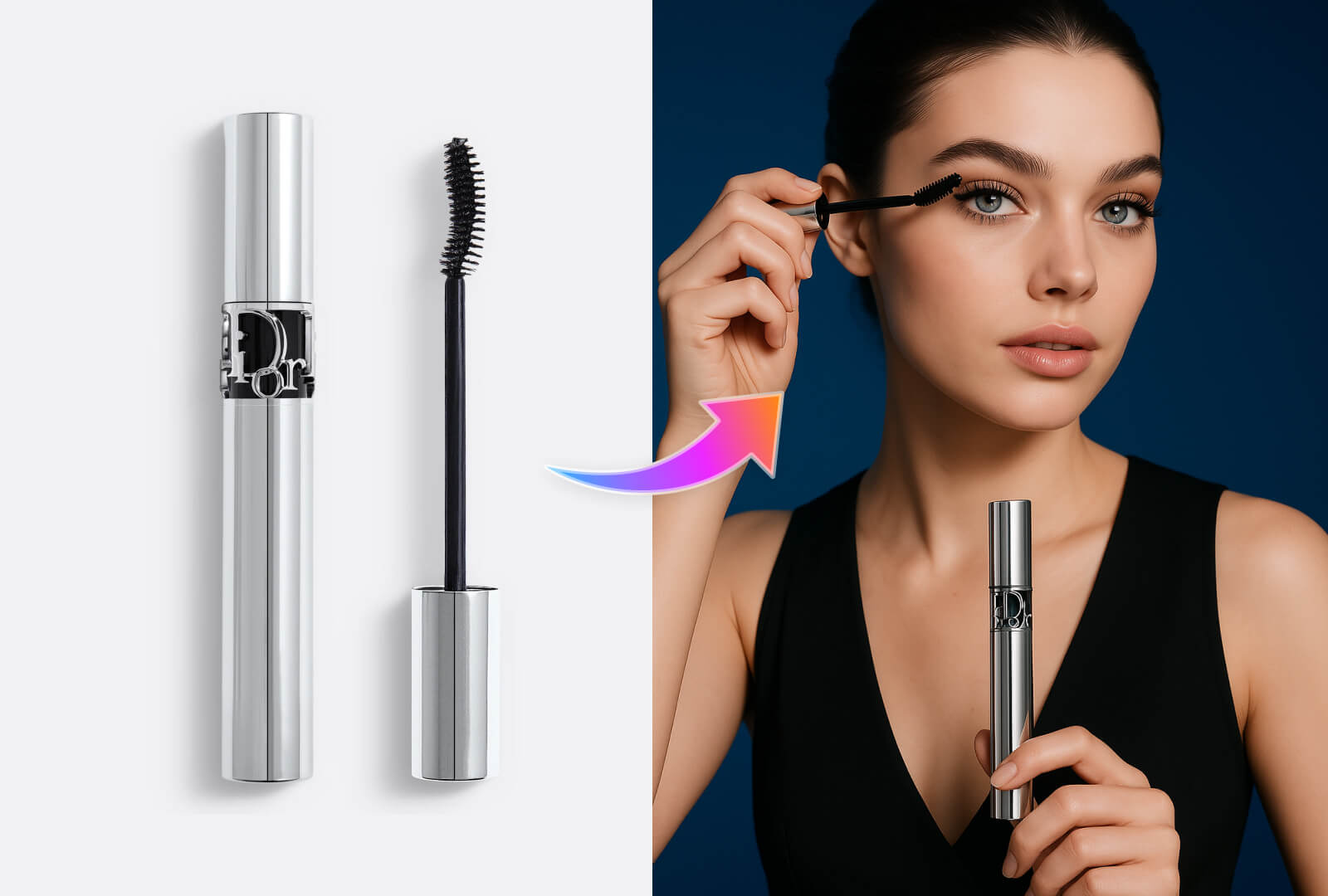
What you can create
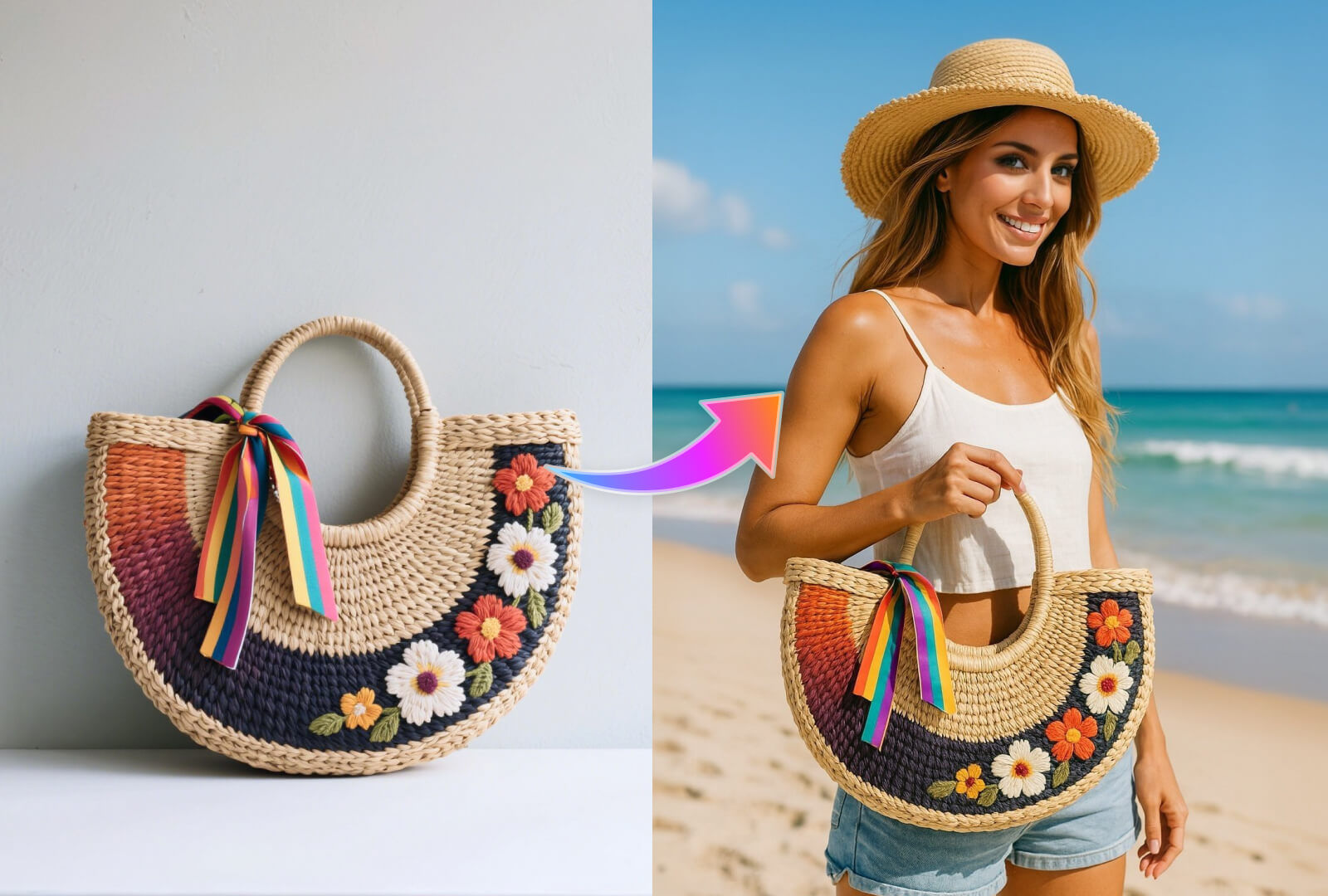
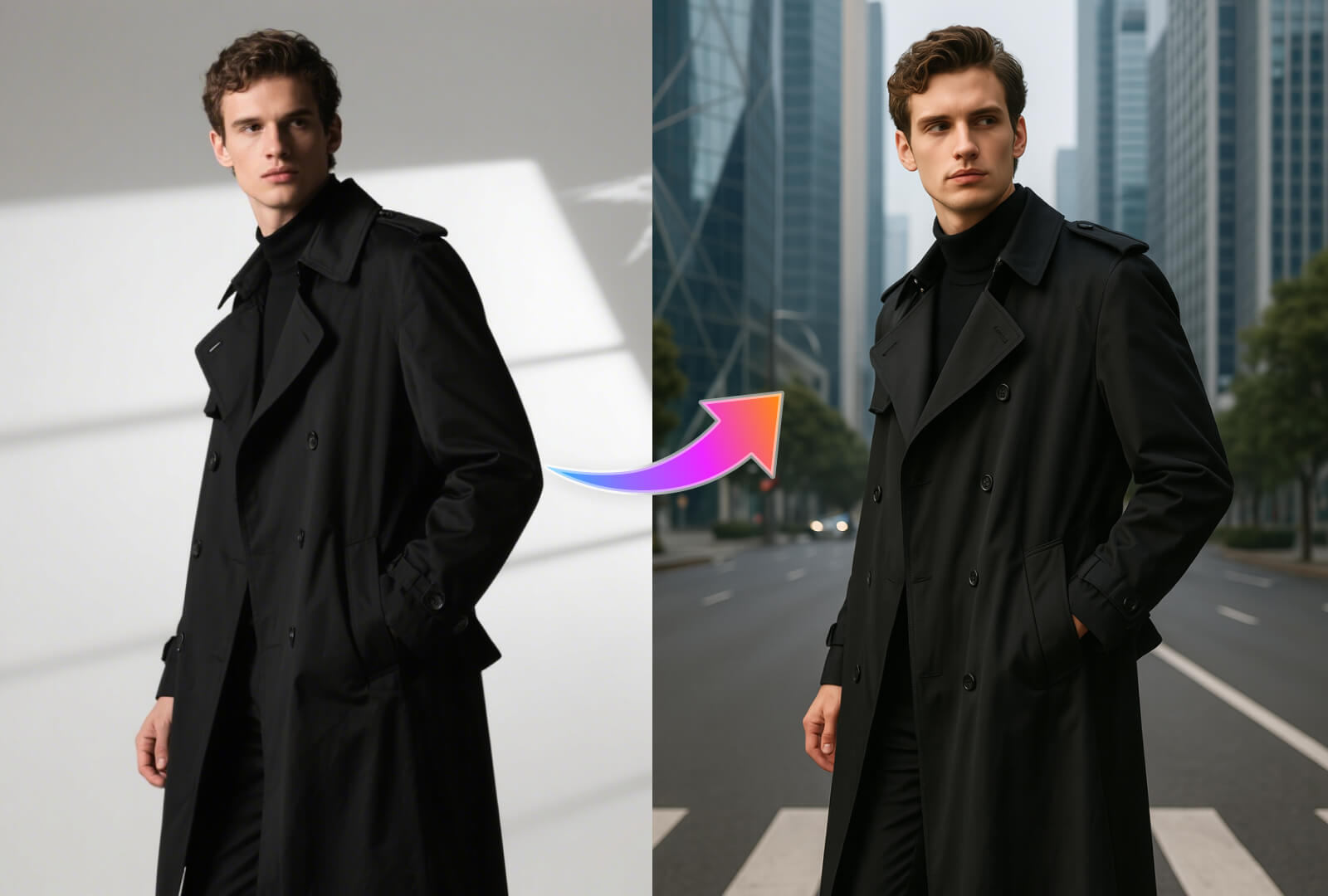
Start in three steps
- 01
Upload the product or garment
Keep shape, texture, and important details visible.
- 02
Choose the model direction
Set the model, pose, audience, and visual context.
- 03
Inspect product fidelity
Review fit, scale, occlusion, and the product details before export.
How to get better results with AI Virtual Try-on
Reliable try-on results depend on a visible garment silhouette, correct layering, body alignment, and careful review of seams and logos.
- Natural product placement
- Audience variations
- Consistent model direction
Continue the workflow
01AI Model Image GeneratorShow products on models while keeping the merchandise recognizable and central.02AI Model SwapChange the person in a product image while preserving styling, product placement, and composition.03AI Pose ChangerCreate pose variations while keeping the model, garment, and campaign direction consistent.
Frequently asked questions
Is AI Virtual Try-on designed for ecommerce images?
Yes. Workshop organizes the task around product fidelity, selling channel, output size, and a result that can continue into another workflow.
What should I prepare before starting?
Prepare a clear, evenly lit product image that shows the full subject and that you have the right to use.